Hytale

When you rent a Hytale dedicated server, everything is set up through a file called config.json. This file basically lets you choose the server name, player limit, performance settings, and how the world behaves. In this guide, we’ll show you how to configure your server and walk you through each setting.
Still don’t have a Hytale server? Get yours here!
Configure Global Settings
Through the DatHost UI
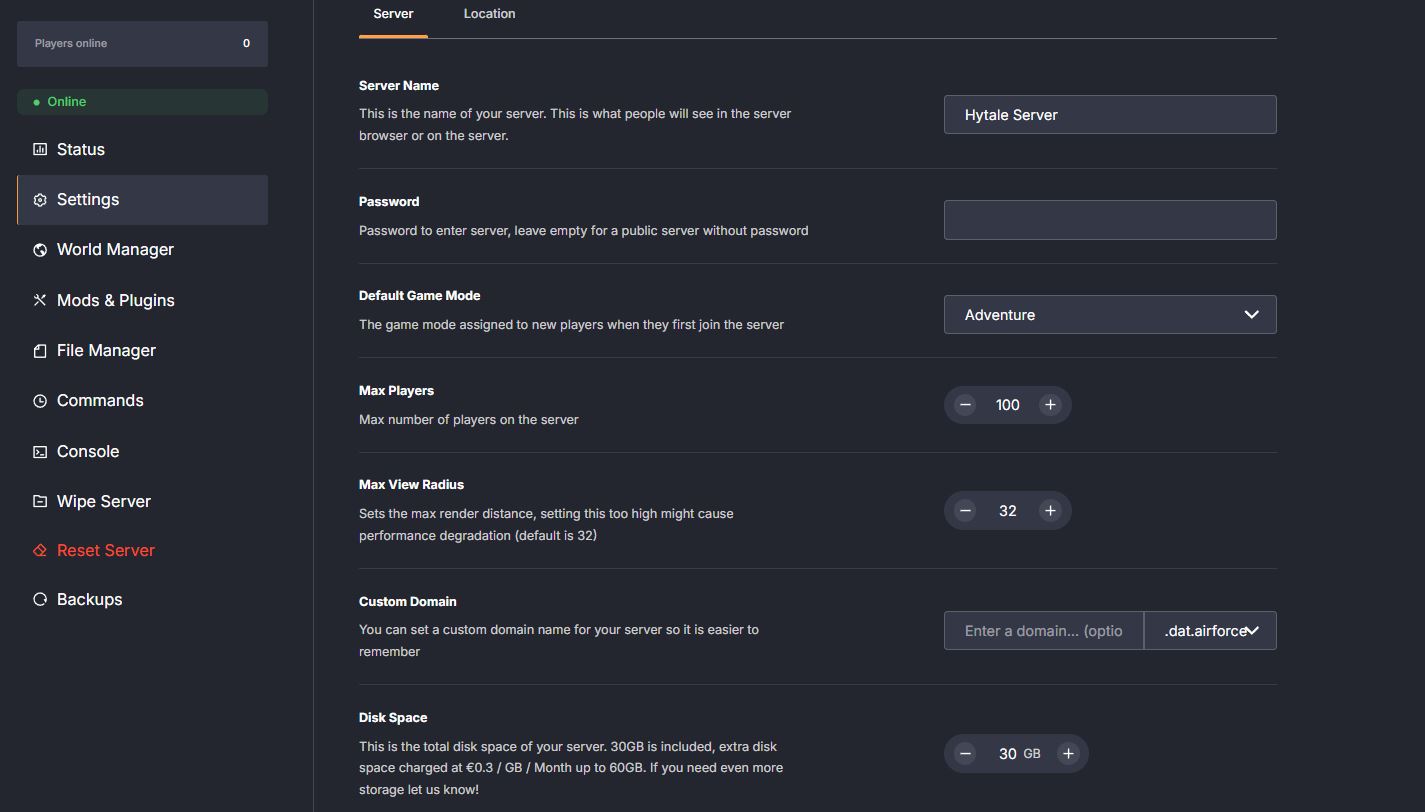
If you prefer not to edit files manually, DatHost lets you configure server settings directly through the Settings tab in the control panel.
- Stop the Server
- Open your Hytale server in the DatHost Control Panel
- Go to the Settings tab
- Adjust settings easily
Through the File Manager
- Stop the Server
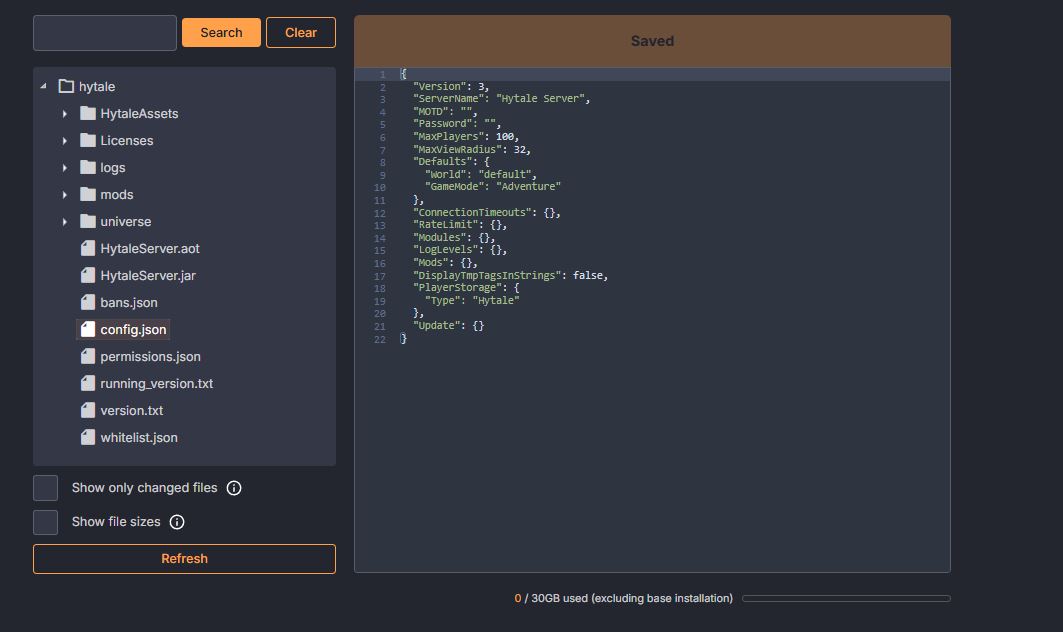
- In the left menu, click File Manager
- You’ll see the server’s file structure
- In the root directory, find:
config.json - Click the file to open it in the editor
- Edit global settings
Configure World Specific Settings
Through the DatHost UI
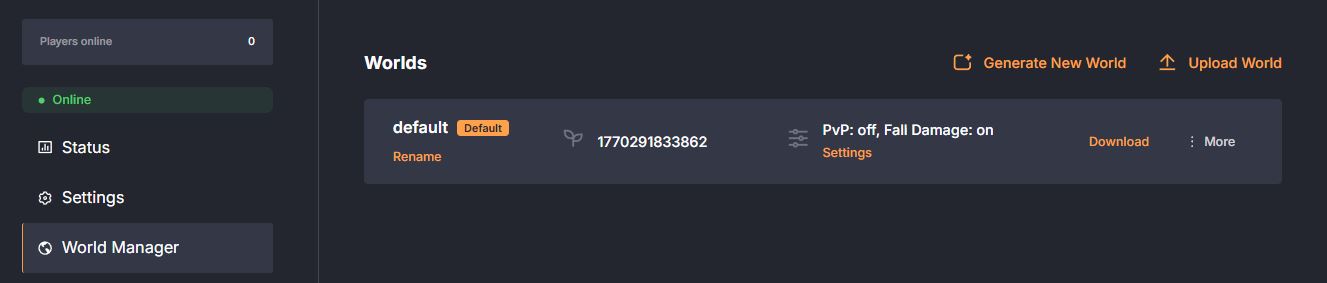
You can configure world specific settings directly through the World tab in the control panel.
- Stop the Server
- Open your Hytale server in the DatHost dashboard
- Go to the World Manager tab
- Adjust settings easily
Through the File Manager
- Stop the server
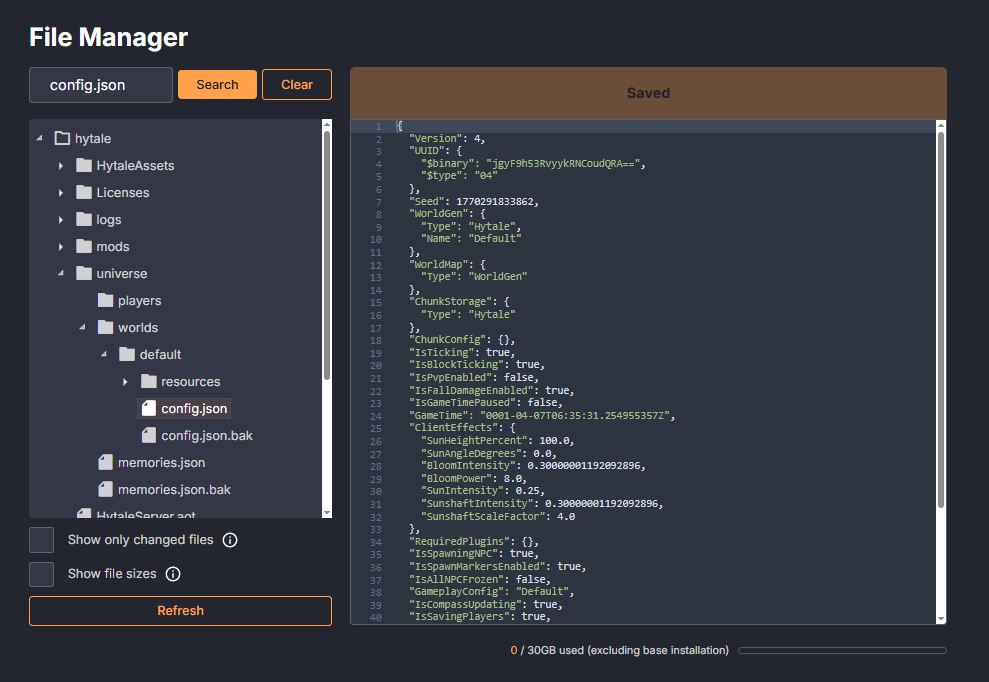
- Open this path:
universe/worlds/<your-world-name>/config.json - Edit world settings such as:
IsPvpEnabledIsFallDamageEnabledIsGameTimePausedIsSpawningNPC
- Each world has its own config.
Save Changes
- Click Save
- Double check for missing commas or brackets
Global Server Settings List
| Setting | What It Does |
|---|---|
| ServerName | Server name shown in server list |
| MOTD | Message shown under server name |
| Password | Password required to join |
| MaxPlayers | Maximum concurrent players |
| MaxViewRadius | How far clients can see (chunks) |
| DisplayTmpTagsInStrings | Shows raw internal tags |
| Defaults World | Default world players spawn in |
| Defaults GameMode | Default player game mode |
| RateLimit | Limits network packets |
| Modules | Enable / disable internal modules |
| LogLevels | Controls log verbosity |
| Mods | Server mods/plugins config |
| PlayerStorage | How player data is stored |
| Version | Config schema version |
World Settings List
| Setting | What It Does |
|---|---|
| Seed | World generation seed |
| WorldGen Type | Generator type |
| Display Name | World display name |
| UUID | Unique world identifier |
| ChunkStorage Type | How chunks are stored |
| ChunkConfig | Pregenerate / keep-loaded regions |
| IsTicking / IsBlockTicking | World simulation ticking |
| IsPvpEnabled | PvP on/off |
| IsFallDamageEnabled | Fall damage on/off |
| IsGameTimePaused | Freeze day/night cycle |
| GameTime | Starting time stamp |
| IsSpawningNPC | Natural NPC spawning |
| IsSpawnMarkersEnabled | Displays NPC spawn markers |
| IsAllNPCFrozen | Freezes all NPC movement |
| IsObjectiveMarkersEnabled | Shows objective markers |
| IsCompassUpdating | Updates compass direction |
| IsSavingPlayers | Saves player data to disk |
| IsSavingChunks / SaveNewChunks | Controls chunk saving behavior |
| IsUnloadingChunks | Unloads distant chunks to save memory |
| ClientEffects | Visual world effects (sun, bloom, etc.) |
Frequently Asked Questions
Yes. The Settings tab in the DatHost control panel lets you adjust settings like server name, password, max players, and more.
Yes. Each world has its own config.json where you can set PvP, time progression, NPCs, and other gameplay rules independently.
Check the console logs in the DatHost panel, most startup errors come from incorrect values. Restore from a backup if needed. You can also contact support@dathost.net and we will make sure to fix the issue.