Minecraft

The server.properties file is basically the settings menu for your Minecraft server. It’s where you can change how the game runs and what it’s like for everyone playing. Are you looking to change game rules, make the server run smoother, or build a custom world? This file lets you do all that, so knowing how to edit it is key to adjust your server exactly the way you want.
Getting Into Your Server Settings
Before we get started, please note that if your server is online, any changes made to the file won't take effect until you restart it. So, after you’ve modified the settings, you’ll need to restart the server for those changes to apply. Now, let’s jump in and see how to access your server.properties file settings!
Step 1: Access your Minecraft Server
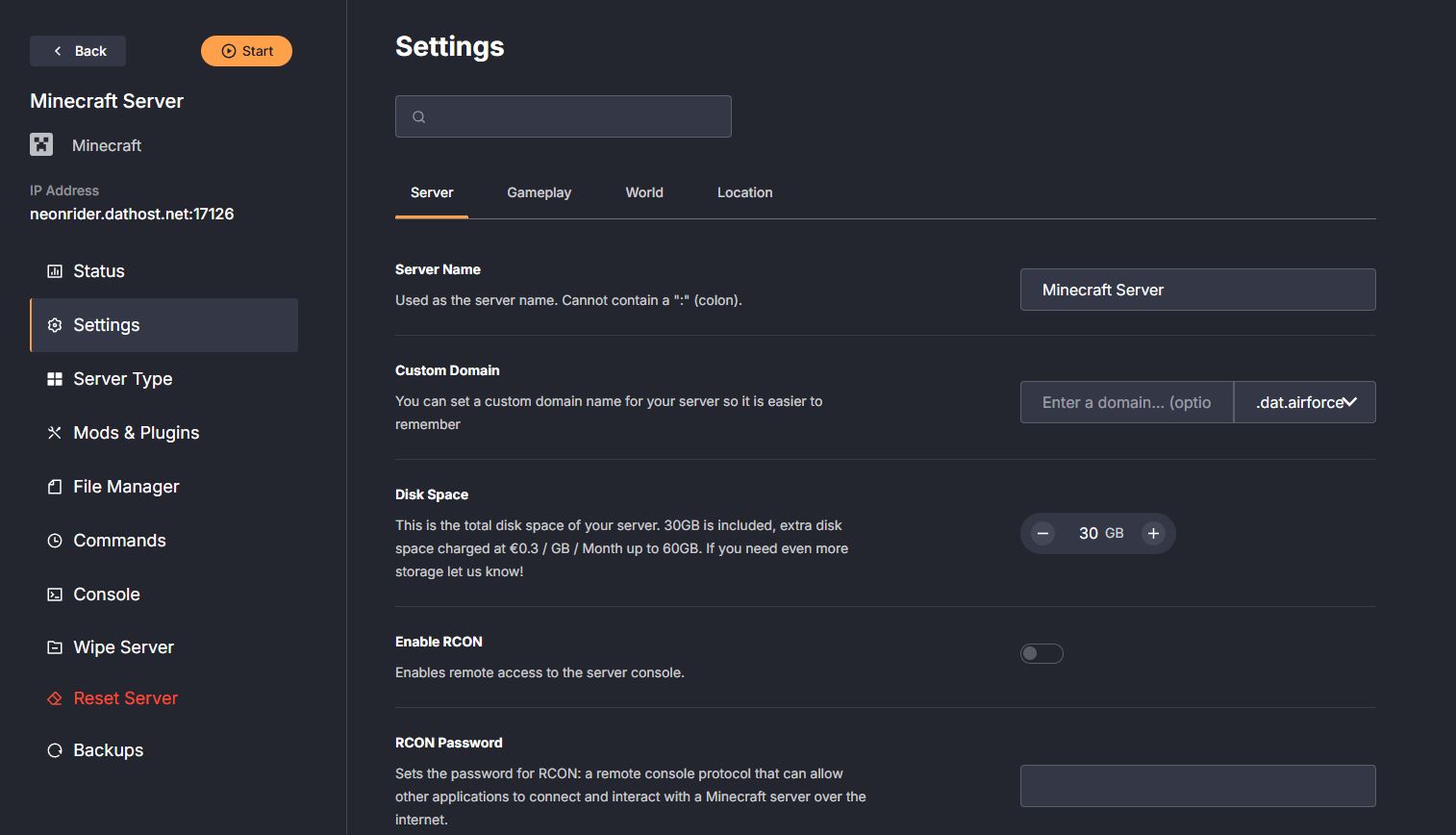
Step 2: Navigate to the File Manager Tab
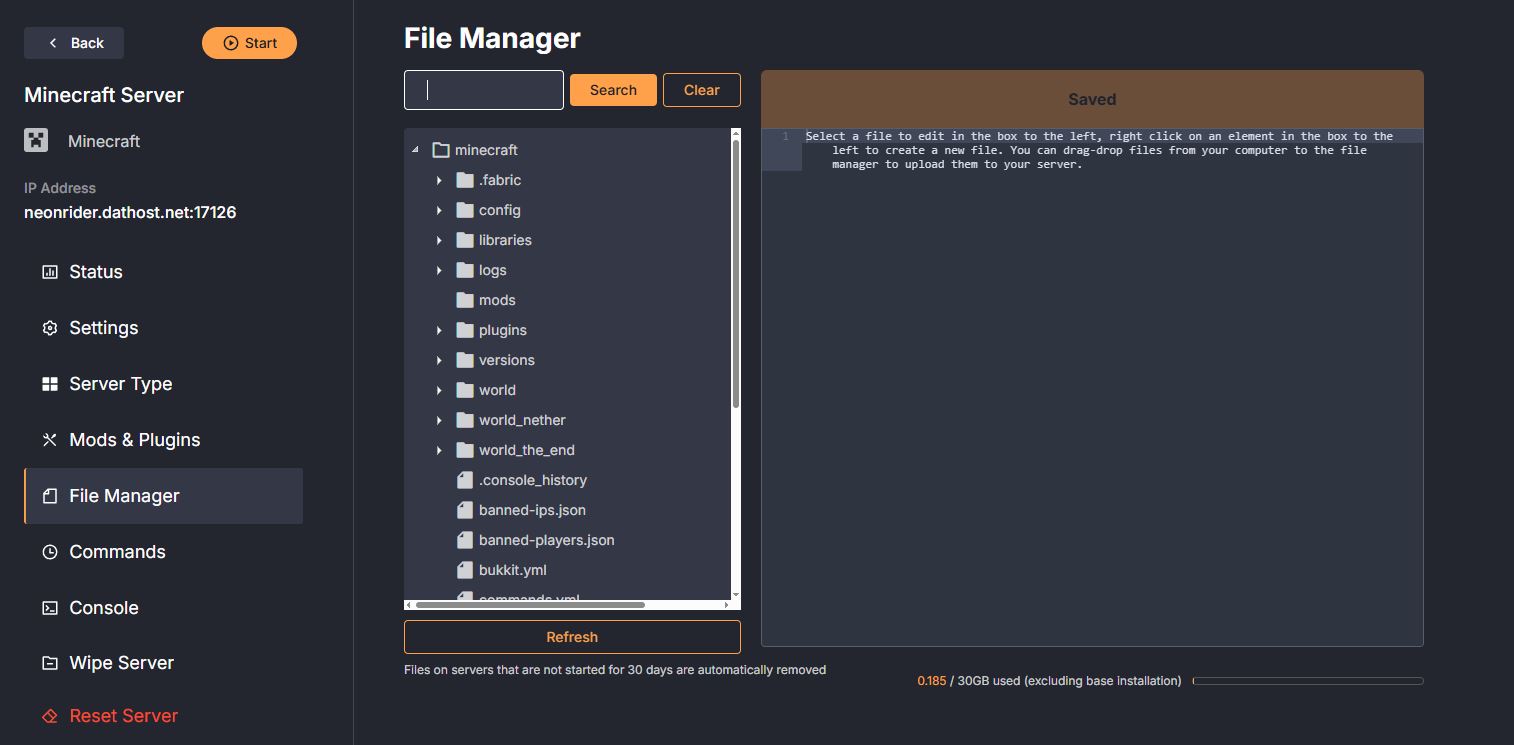
Step 3: Look for the server.properties file in the search bar
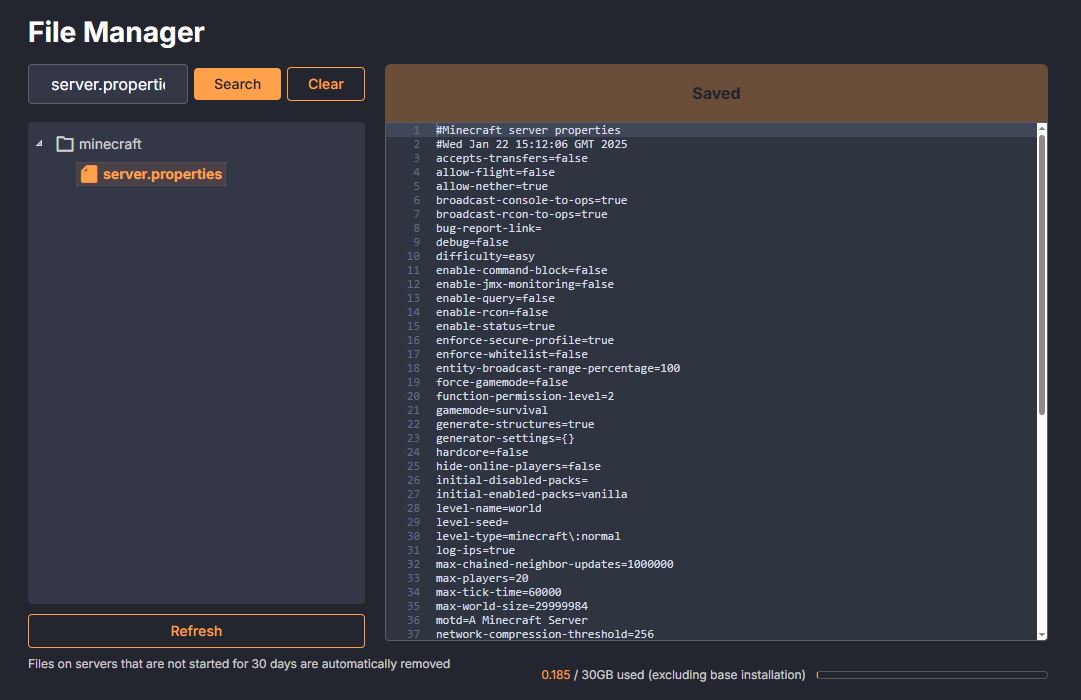
Customizing Your Server Settings
Now that you know how to access the server.properties file, you can change the settings however you like. Find below the most popular settings:
| Setting Name | Default Value | Description |
|---|---|---|
| allow-flight | false | Allows or denies flight in survival mode. |
| allow-nether | true | Whether players can access the Nether dimension. |
| difficulty | easy | Sets the game difficulty (peaceful, easy, normal, or hard). |
| enable-command-block | false | Allows or disables the use of command blocks. |
| enable-rcon | false | Enables RCON (remote console) access. |
| gamemode | survival | Default game mode (survival, creative, adventure, or spectator). |
| max-players | 20 | Maximum number of players allowed on the server. |
| online-mode | true | Requires players to log in with a valid Minecraft account. |
| pvp | true | Whether player versus player combat is allowed. |
| spawn-protection | 16 | Radius (in blocks) around the spawn point where players cannot break blocks. |
| view-distance | 10 | The number of chunks around each player that are visible and loaded. |
| white-list | false | Whether only whitelisted players are allowed to join the server. |
Frequently Asked Questions
To access the file, first, log in to your DatHost server's control panel. From there, navigate to the File Manager tab and search for "server.properties." After that, you can open it and start making changes to the server settings.
Yes! You can set the game difficulty to peaceful, easy, normal, or hard by adjusting the "difficulty" setting. This allows you to control the challenge level of your Minecraft world.
Yes, you must restart your minecraft server for the new settings to take effect. If your server is online, the changes won't apply until it restarts.
To keep unwanted players out, you can enable the whitelist setting in the server.properties file by setting "white-list" to true. This will only allow players you’ve added to the whitelist to join your server.