Minecraft

If you have a Minecraft server, sooner or later you’ll need to move files around.
Worlds, mods, plugins, configurations, or backups. This is where FTP comes in.
Many players use it without any issues, while others end up losing files, overwriting folders, or changing things they shouldn’t.
The reality is that FTP is not complicated, but using it correctly makes a big difference.
In this guide, you'll learn what FTP is, how to use it, and which mistakes you should avoid.
- Download an FTP client like FileZilla
- Connect using your host, port, username, and password
- Easily upload and manage server files
- Always create a backup before modifying important files
What is FTP and what is it for?
FTP (File Transfer Protocol) is a system that lets you access your server files directly from your computer.
With FTP you can:
- Upload mods or plugins
- Download backups
- Edit configurations
- Move worlds between servers
- Manage files quickly
Think of FTP as a file explorer for your server.
How to connect to a server using FTP
1. Download an FTP client
One of the most commonly used tools is:
Install it on your computer.
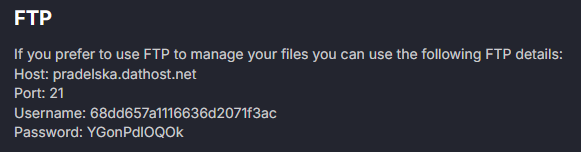
2. Get your FTP details
You will need:
- Host
- Port
- Username
- Password
These details are usually available in your hosting panel.
If you’re using DatHost, you can find your FTP information directly inside the File Manager, where you’ll have access to all the required connection details.
It’s recommended to change your FTP password regularly to improve security and prevent unauthorized access.
3. Connect to the server
Enter your FTP information into the client and press connect.
Once connected, you’ll be able to see your server folders.

How to use FTP correctly
Upload files
Drag files from your computer to the server.
- Once connected, you can drag and drop files directly between your computer and the server:
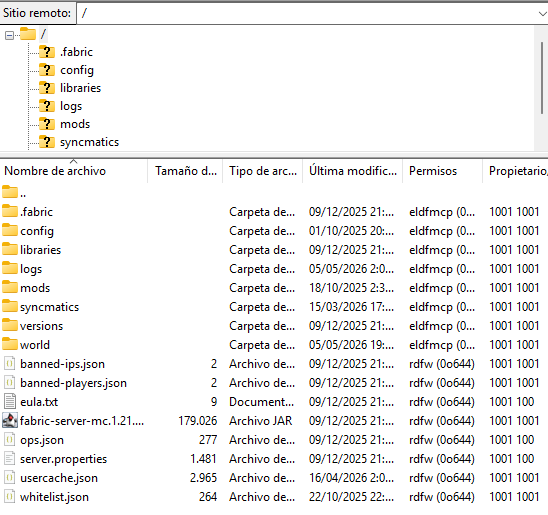
- Mods →
/mods - Plugins →
/plugins - Worlds →
/world
Download files
You can also download complete folders such as:
- Backups
- Configurations
- Worlds
Edit carefully
Before replacing important files:
- Create a backup
- Make sure you're editing the correct folder
Important tips
- Stop the server before making large changes
- Create backups regularly
- Keep folders organized
- Double-check before replacing files
FAQ
No, but modifying the wrong files can cause problems.
Not always, but it's very useful for managing large files.
It depends. For small changes, the panel file manager may be enough, but FTP is more convenient for transferring large amounts of files.