Minecraft

If you want to play Minecraft with mods, at some point you’ll want to use your own custom modpack. This is where many people get confused. Incompatible mods, startup errors, worlds not loading… most of these issues come from a bad setup. The reality is that uploading a custom modpack is not difficult if you follow the right steps. In this guide, you’ll learn how to do it step by step so it works properly from the beginning.
- Client and server must have the same mods
- Always use the same Minecraft version
- Upload the /mods folder correctly
- Check compatibility before starting
What You Need Before Starting
Before uploading a modpack, you need to have everything ready.
- Defined Minecraft version (Fabric or Forge)
- All mods downloaded
- The pack working in your client (very important)
If the pack doesn’t work in your game, it won’t work on the server either.
How to Upload a Custom Modpack
1. Install the correct loader
Make sure your server is using the same loader as your pack:
- Fabric
- Forge
If you want to know what server type you need can follow this guide.
2. Upload the mods folder
Access your server and upload all mods to:
/mods
Make sure they exactly match the client.
If you’re using DatHost, you can upload your mods directly from the dashboard by dragging and dropping the files:
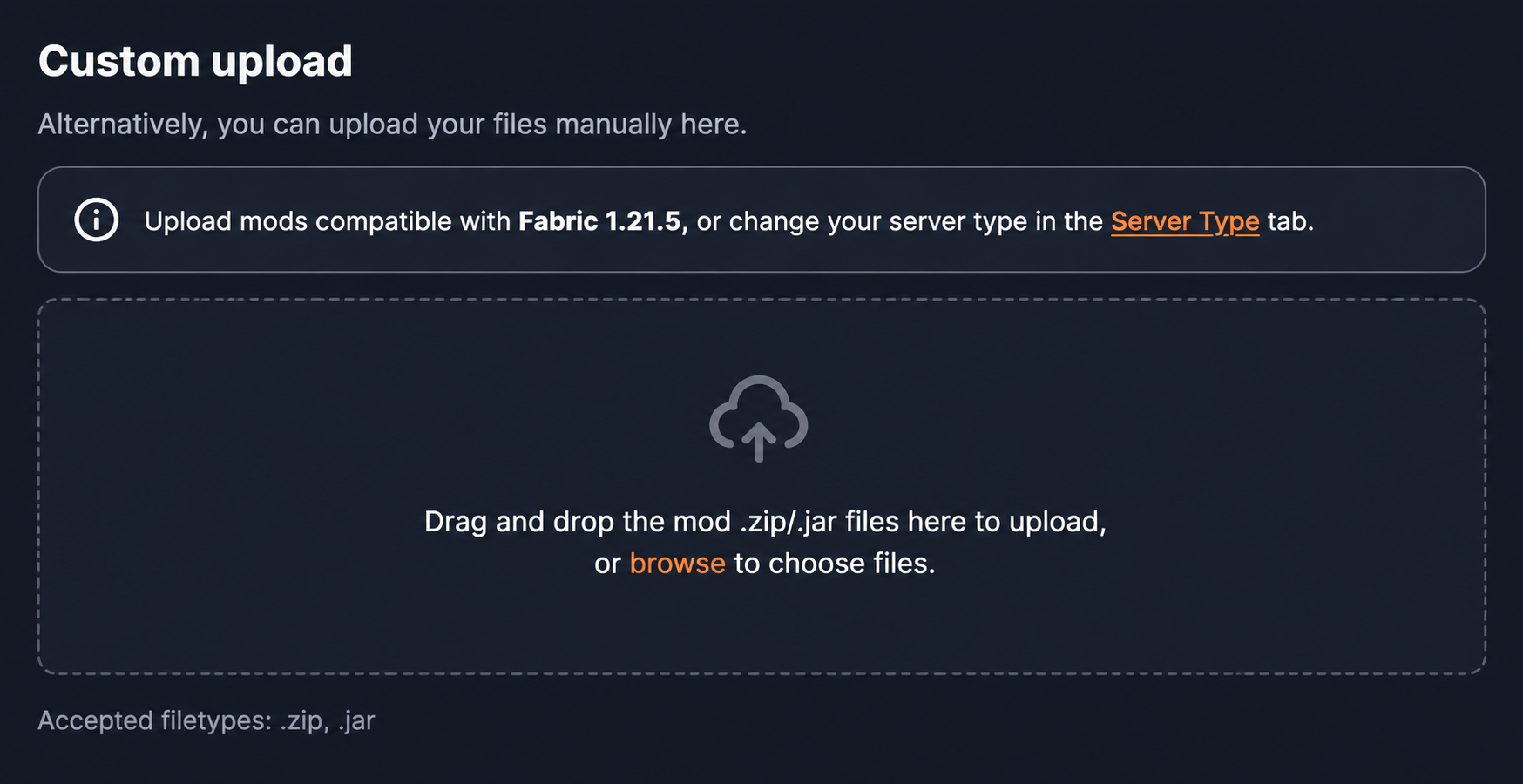
This is the easiest way to upload mods without using FTP.
You can also verify that all mods are correctly placed inside the /mods folder:
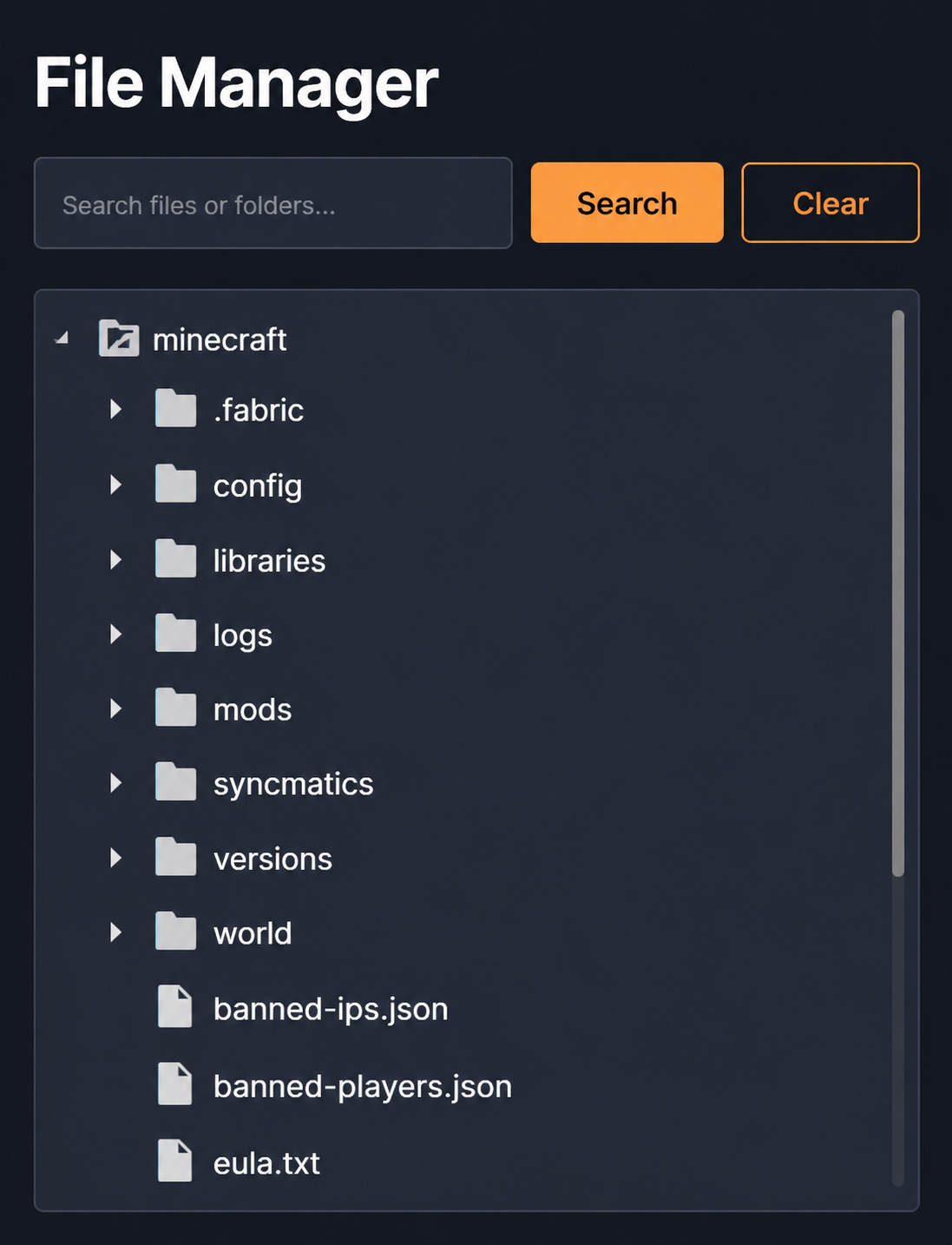
3. Add configurations (if needed)
Some mods generate configuration files.
If you already have a configured world, upload:
/configfolder/defaultconfigsfolder (if it exists)
4. Upload the world (optional)
If you already started a world in singleplayer:
- Upload your world to the server
If your world is on another hosting, you can follow this guide: How to migrate your Minecraft server to another hosting (step by step)
This way you keep your progress.
5. Start the server
Start the server and check:
- No errors in the console
- The server starts correctly
- Mods load properly
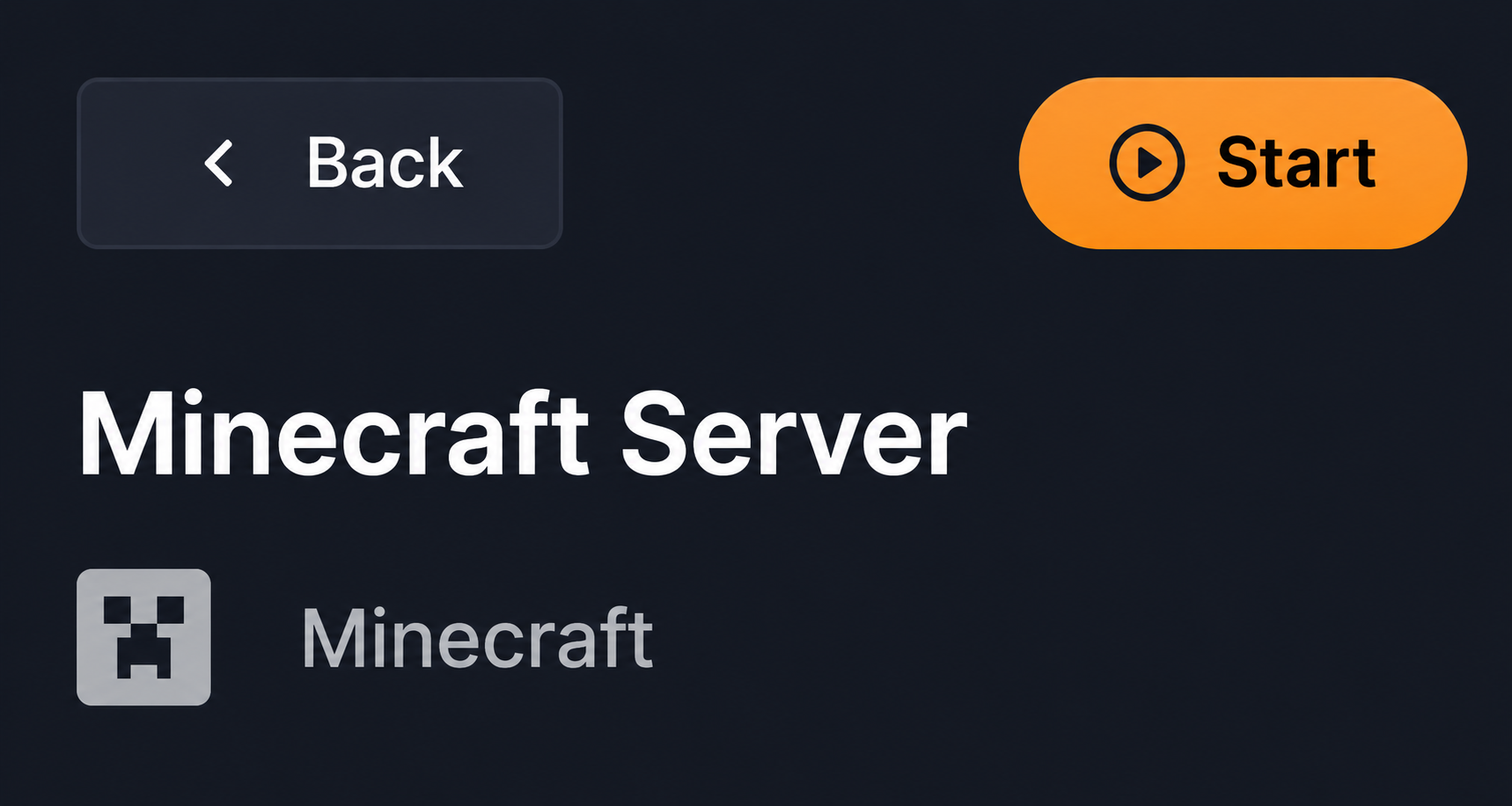
Once everything is uploaded, you can start the server directly from the panel:
Common Mistakes
Incompatible versions
- Mods in different versions → server won’t start
Client-only mods
- Some mods don’t work on servers
- Example: minimaps, shaders, etc.
Missing dependencies
- Some mods require others to work
Setting up without testing first
- If it doesn’t work locally, it won’t work on the server
Important Tips
- Start with a few mods and scale up
- Add mods gradually
- Check console errors
- Avoid untested packs
FAQ
Usually due to incompatible versions or missing dependencies.
Yes. They must be exactly the same.
Yes, but it should be done carefully to avoid issues.